

Overview#
Welcome to the documentation of XlCalcNet (Microsoft Excel and LibreOffice Calc addin, based on PythonNet), a python library with focus on numerical calculations in multiple precision and data visualisation, which can also be used within MS Excel and LibreOffice Calc spreadsheet formulas. This edition of the documentation describes release 0.8.0. The documentation can also be downloaded in PDF format from here.
XlCalcNet is free software released under the Mozilla Public License \(2.0\) (see License). The git repository is duhadler/XlCalcNet.
XlCalcNet can be installed as a python package from PyPI. More detailed information regarding the installation and general usage of XlCalcNet can be found here.
Since one of the main goals of XlCalcNet is to enable the use of functions written in Python or C# within spreadsheet formulas, it is assumed that Microsoft Excel (2010 or later, 64 bit) and/or LibreOffice (version 7.0 or later, 64 bit) is installed on the users system, running under Windows (7.1 or later, 64 bit).
Use with Microsoft Excel#
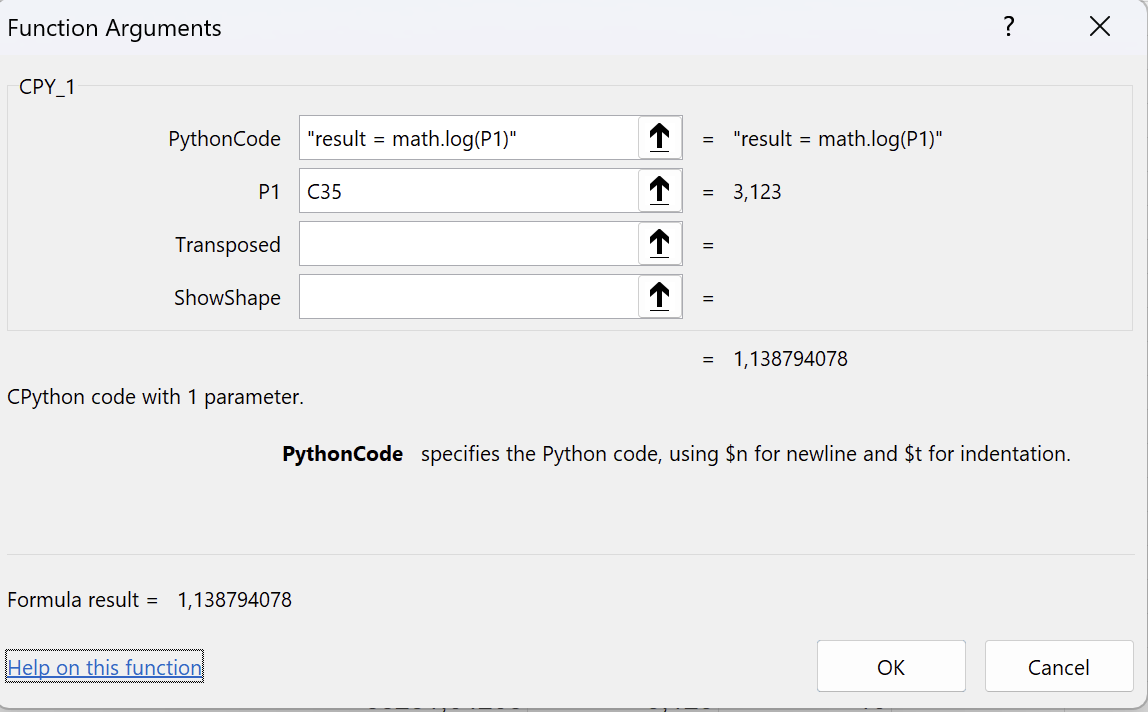
Once MS Excel has been prepared for using XlCalcNet (see here for details), one can run small Python scripts in spreadsheet formulas, using parameters which are passed from other spreadsheet cells. If the example workbook “Simple.xlsx” has been loaded, the following dialog box will appear when the user clicks on the “Insert Function” button in Excel’s formula bar:
XlCalcNet can also be used for procedures. To access the relevant dialog, right-click anywhere on the spreadsheet. The following context menu will appear:
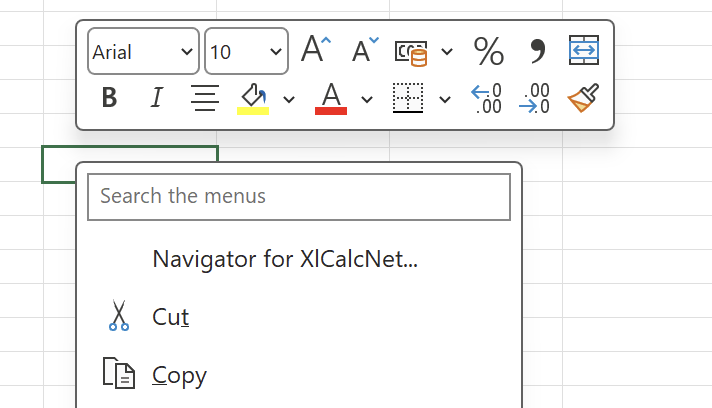
Click on Navigator for XlCalcNet. The following dialog box will appear:
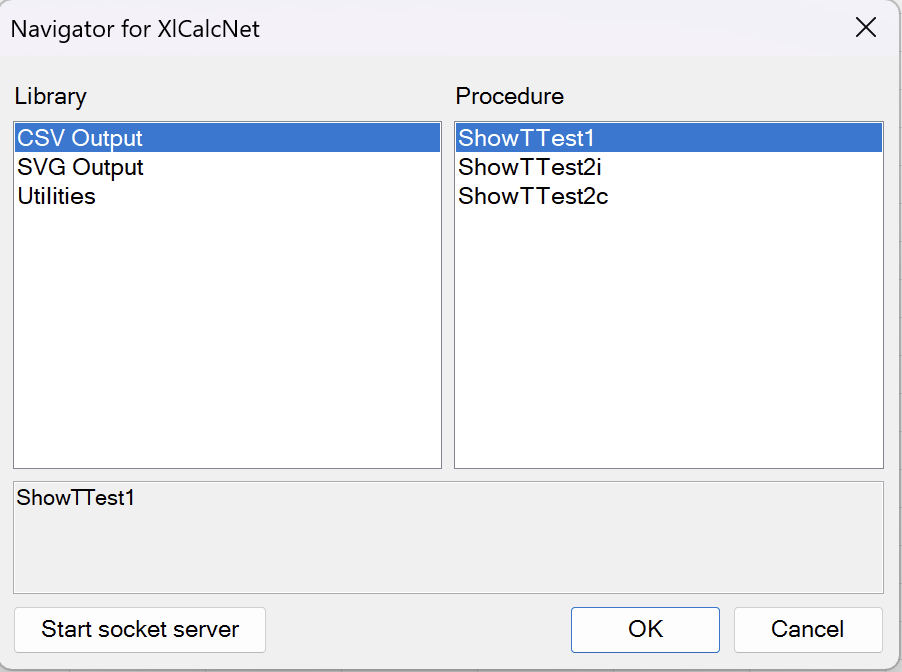
This can be used to call external procedures, which are not used in spreadsheet formulas. The procedures can be used to generate plots, for example. The generated plots can be saved as bitmap files or as interactive 3D plots in a separate window.
Use with LibreOffice Calc#
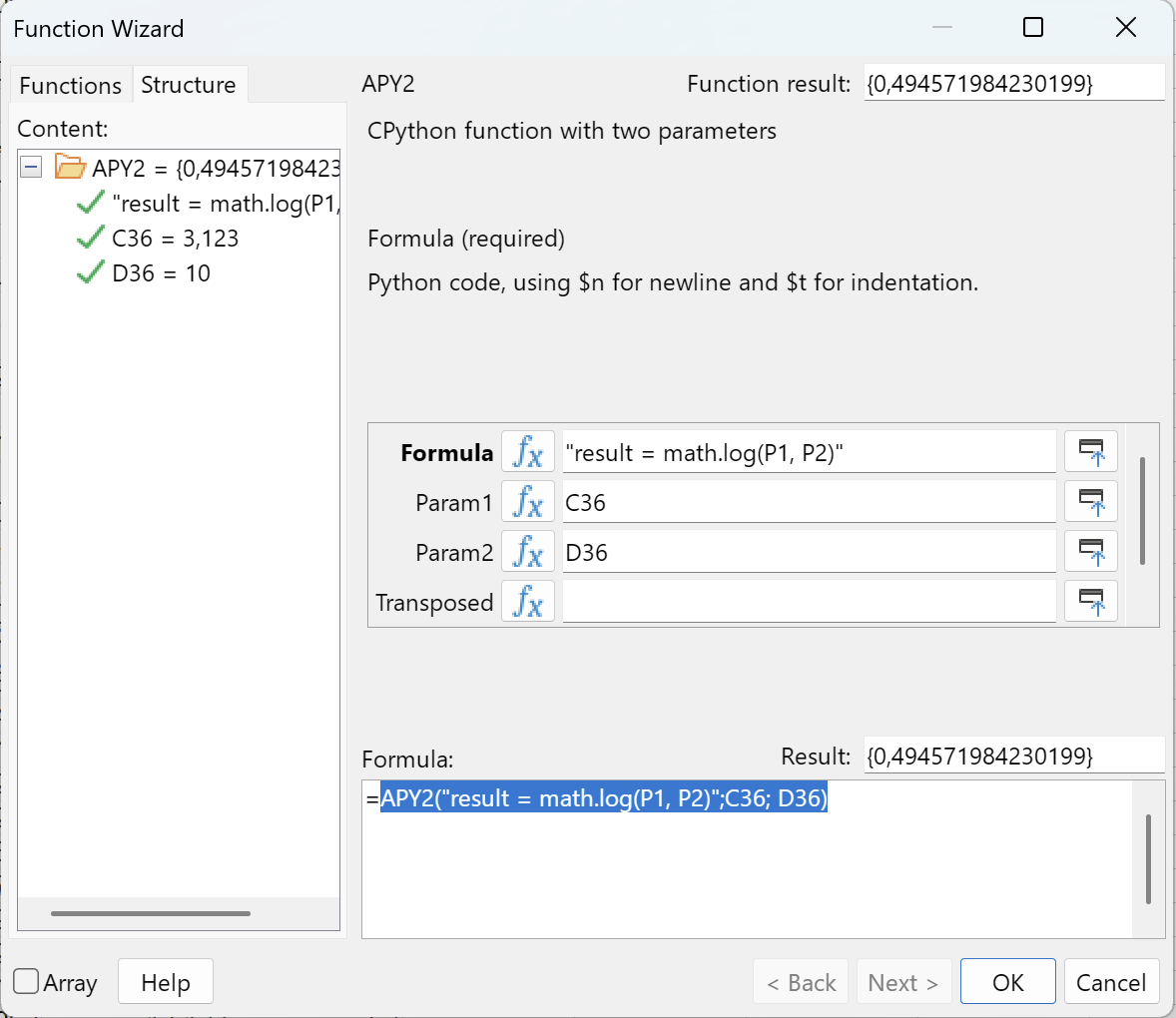
Once LibreOffice Calc has been prepared for using XlCalcNet (see here for details), one can run small Python scripts in spreadsheet formulas, using parameters which are passed from other spreadsheet cells. If the example workbook “Simple.xlsx” has been loaded, the following dialog box will appear when the user clicks on the “Insert Function” button in LibreOffice Calc’s formula bar:
XlCalcNet can also be used for procedures. To access the relevant dialog, click on the XlCalcNet logo (in orange) on the main menu bar:
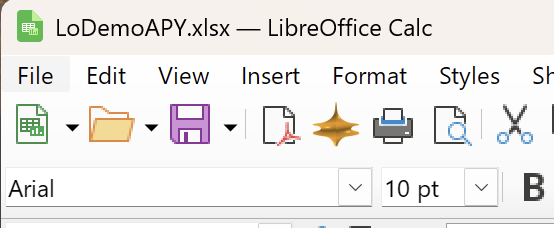
The following dialog box will appear:
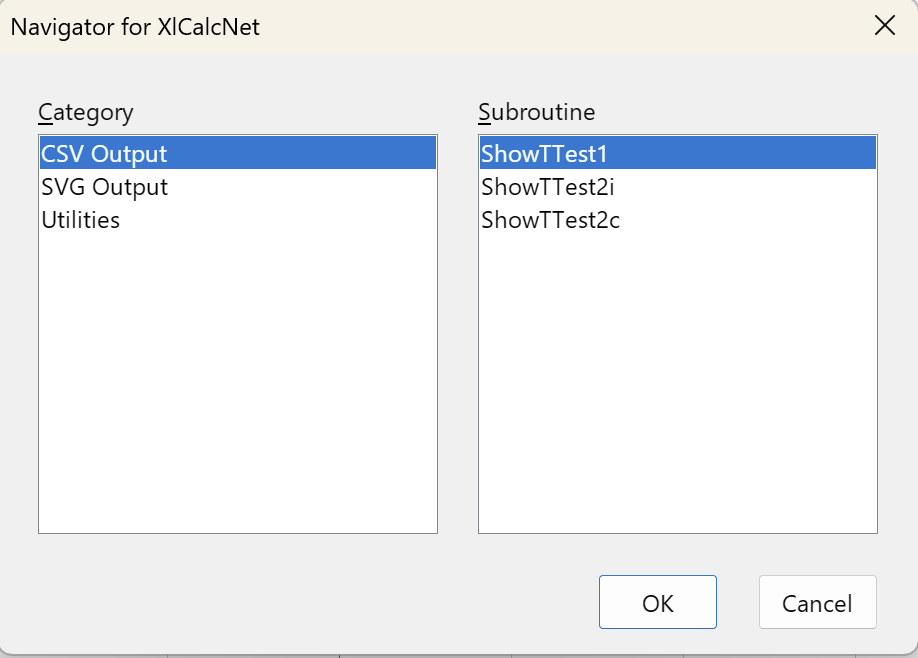
This can be used to call external procedures, which are not used in spreadsheet formulas. The procedures can be used to generate plots, for example. The generated plots can be saved as bitmap files or as interactive 3D plots in a separate window.