Setting up XlCalcNet#
This chapter in general, and this section in particular, has been written with users in mind, who are comfortable using user-defined functions in spreadsheet formulas, but have only limited or no experience using Python.
The main goal of XlCalcNet is to enable the use of functions written in Python or C# within spreadsheet formulas. It is therefore assumed that Microsoft Excel (2010 or later, 64 bit) is installed on the users system, running under Windows (7.1 or later, 64 bit), with .NET Framework 4.8/4.8.1 installed.
XlCalcNet is a numerical library with parts written in Python and other parts written in C#, C++, C and Pascal, focussing on numerical calculations in multiple precision and data visualisation.
Since the main goal is to give access to software written in Python (or via PythonNet software written in C#) from within spreadsheet formulas, a dedicated CPython installation is strongly recommend, to make it easier to configure the interaction with Microsoft Excel, without disturbing existing Python installations.
The interaction with Microsoft Excel is achieved by running a socket server written in Python, which is called from spreadsheet formulas using the functionality provided by Excel.Dna.
The code which is necessary to make this work overall contains much more C# and C/C++ than Python, so the project is not really suitable as a project on PyPI, but is provided as a Github project only. Both the source code and precompiled binaries are included, since compiling all of the source code requires MSYS2, Free Pascal and Visual Studio, which not all Excel users will be familiar with.
On the Python side XlCalcNet uses Mpmath 4.0 to provide a rich set of functions in arbitrary precision, using not only Mpmath’s binary and interval data types, but also Python’s built-in Decimal and Fraction data types. If GMP2 is installed, its data types can be used in many cases instead of Mpmath’s binary data types, being much faster. Likewise, if Python-Flint is installed, its data types can be used in many cases instead of Mpmath’s interval data types, being much faster, and often also more accurate.
On the C/C++ side, XlCalcNet uses DAMath, Boost Math, Boost Multiprecision and Eigen to provide numerical functions in single, double, extended, quadruple and octuple precision, which are available to the user both from C# and Python.
The XlCalcNet2 library, which is licensed under the LGPL-3.0 and is therefore provided as a separate project, is based on Boost Math, Boost Multiprecision, Eigen, GMP, MPFR, MPC and Flint and provides functions for the same data types as XlCalcNet and also in arbitrary precision.
XlCalcNet is intended to be used together with existing Python libraries like NumPy, Matplotlib, Pandas, SciPy. It can also be used from recent versions of RStudio and R, using the reticulate package.
Downloading and installing the “right” version of CPython#
Installation of CPython specifically for Excel
Explain installation process.
Current development version
This documentation is available online at https://duhadler.github.io/XlCalcNetDocsOnline/
The pdf can be downloaded from duhadler/DocsXlCalcNet
The git repository is duhadler/xlcalcnet)
Checking that it works
After the setup has completed, you should be able to fire up the interactive Python interpreter and do the following:
>>> from xlcalcnet import *
>>> mp.dps = 50
>>> print(mpf(2) ** mpf('0.5'))
1.4142135623730950488016887242096980785696718753769
>>> print(2*pi)
6.2831853071795864769252867665590057683943387987502
Note: if you have are upgrading xlcalcnet from an earlier version, you may have to manually uninstall the old version or remove the old files.
Installing XlCalcNet#
It is recommended that you run xlcalcnet’s full set of unit tests to make sure everything works. The py.test is a required dependence for testing. The tests are located in the tests subdirectory of the main xlcalcnet directory. They can be run using:
``py.test --pyargs xlcalcnet``
If any test fails, please send a detailed bug report to the xlcalcnet issue tracker.
To run the tests with support for gmpy disabled, set mpdistlab_NOGMPY environment variable.
To enable extra diagnostics, use, set mpdistlab_STRICT environment variable.
Installing and using Pythonnet: Calling C# from Python#
Python.NET is a package that gives Python programmers nearly seamless integration with the .NET Common Language Runtime (CLR) and provides a powerful application scripting tool for .NET developers. It allows Python code to interact with the CLR, and may also be used to embed Python into a .NET application.
.NET Framework is part of the Microsoft Windows operating system since Windows Vista; .NET Framework 4.x can be installed since Windows XP. Recent versions of Windows (Windows 7 - Windows 11), which have been kept fully maintained, have .NET Framework 4.8 installed, which is the latest version of .NET Framework and will continue to be distributed with future releases of Windows. As long as it is installed on a supported version of Windows, .NET Framework 4.8 will continue to also be supported (see https://dotnet.microsoft.com/en-us/platform/support/policy/dotnet-framework).
As part of the .NET Framework 4.x runtime, 3 different compilers are provided: csc.exe (C#), vbc.exe (Visual Basic), and jsc.exe (JScript).
The 32 bit targeting versions are located in C:\Windows\Microsoft.NET\Framework\v4.0.30319 and those for 64 bit in C:\Windows\Microsoft.NET\Framework64\v4.0.30319.
It is important to note that these compilers are not part of Visual Studio but part of Windows; they are, in a way, the closest to a compiler as part of the operating system that Windows has ever come up with. On the other hand, these compilers have been tugged away with the rest of the .NET Framework 4.x runtime; in that sense, they are “hidden” compilers.
In the following, we will ignore the Visual Basic and JScript compilers, but focus only on C#. The C# compiler supports only language versions up to C# 5. Luckily, this still provides us with all language features which we need for our purposes.
In terms of usability, the .NET Framework 4.x runtime does not include an IDE; we therefore include a tiny IDE as described below.
The 3 folder concept: user, application local data, installation#
The data which are directly maniplated by the user are located in:
The data which generated as a result of running a python script or C# program are written to:
The data which contain the installation are located in:
Copying and exploring the DataXlCalcNet folder#
Describe the copying and exploring the DataXlCalcNet folder
Installing and using the Tiny IDE as a Python application#
Editing and compiling can be done with “Tiny C#/Python IDE”:
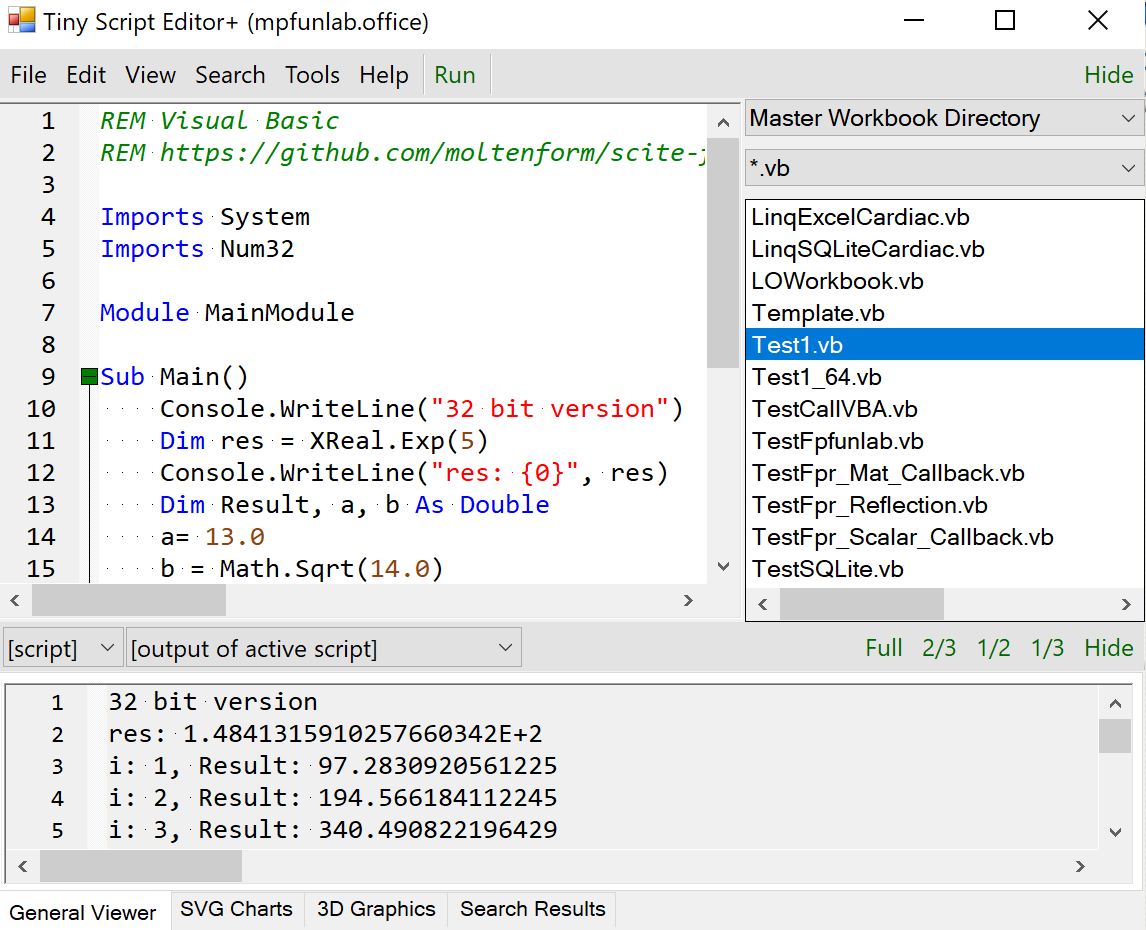
Follow the steps to make the Tiny IDE available:
In the Python installation folder, rightclick on
pythonw.exe.Select
Verknüpfung erstellen-> Result:pythonw.exe-Verknüpfung.Rightclick on
pythonw.exe-Verknüpfung; Select Properties.In the dialogue Properties, select “Target”, and type:
C:\Python313\pythonw.exe C:\Python313\Lib\site-packages\xlcalcnet\ShowEditor.py. Then save.Rename
pythonw.exe-VerknüpfungtoTinyIDE_Python313Doubleclick on
TinyIDE_Python313In the task-bar, rightclick on the appearing symbol, and select “An Taskleiste anheften”
Building a library of user defined python functions#
MS Excel: TestCPython.xlsx
Building a library of user defined functions in C##
Describes building and using the user library.
Sphinx: building documentation for software with Python (html and pdf)#
See also: https://www.sphinx-doc.org/en/master/
See also: https://www.sphinx-doc.org/en/master/usage/markdown.html